Introducing the Schema Markup Generator – a native tool built directly into the Website & Funnel Builder that lets you create, validate, and publish structured data (schema markup) without leaving the platform. No external tools. No manual code injection. No technical expertise required.
Note: The SEO Meta Data section has been renamed to SEO & AI search optimization as part of this release.
Why This Feature?
Schema markup tells search engines and AI systems exactly what your page is about – making your content eligible for Google rich results, LLM citations (ChatGPT, Perplexity), and Google AI Overviews. Today, adding schema is a painful, error-prone process that requires external tools and technical knowledge. This feature eliminates that entirely.
Key Highlights
- 140+ Schema Types – Covers local businesses, products, articles, FAQs, events, and more
- Form View – No-code, guided editor; just select a schema type and fill in the fields
- JSON View – Advanced users can write or paste JSON-LD directly
- Built-in Validation – Auto-validates against Schema org & Google rich results guidelines on save
- No external validator needed
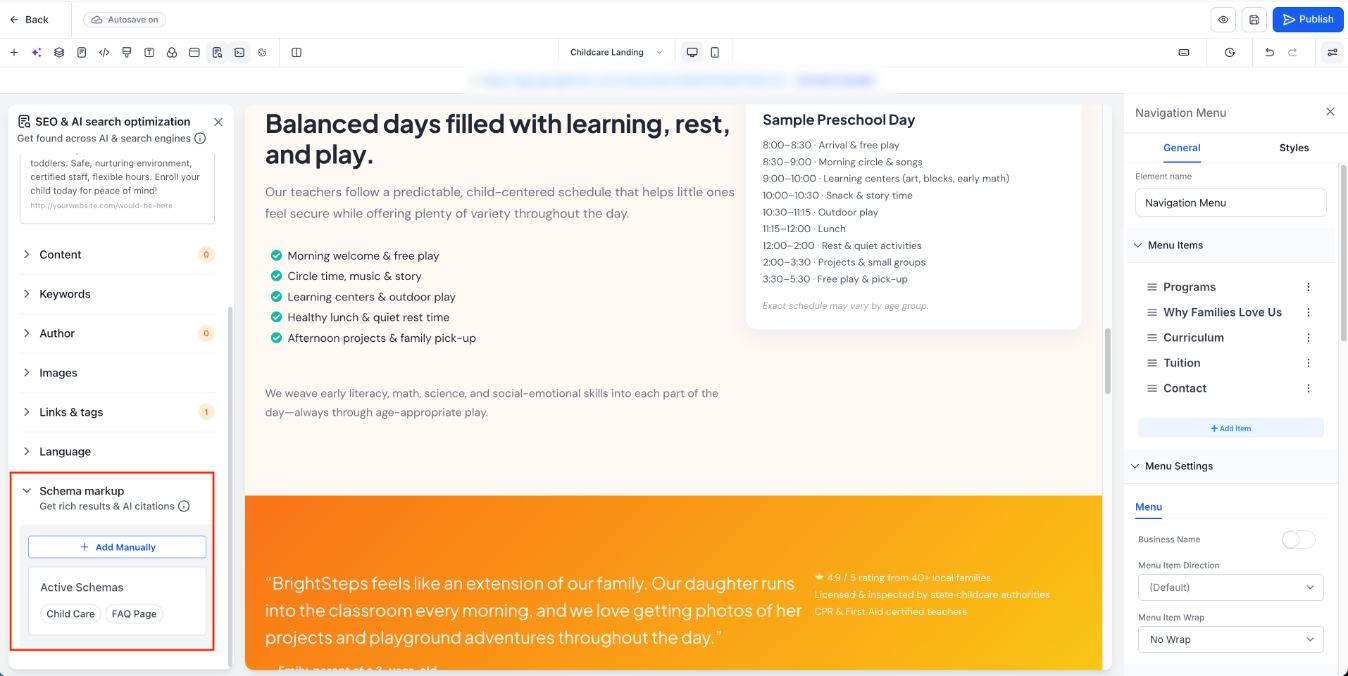
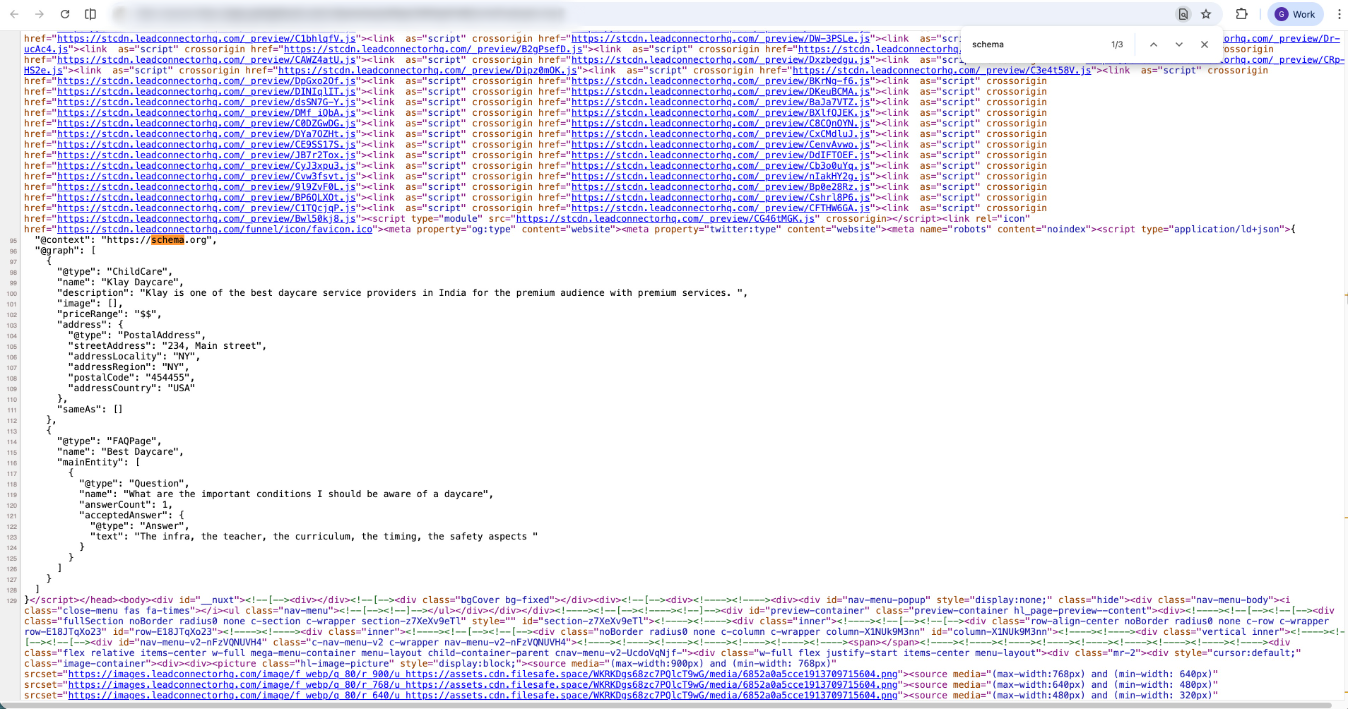
- One-Click Save & Publish – Schema is saved to the page <head> and goes live on publish
- Multiple Schemas Per Page – Add and manage multiple schema types on a single page
How to Use
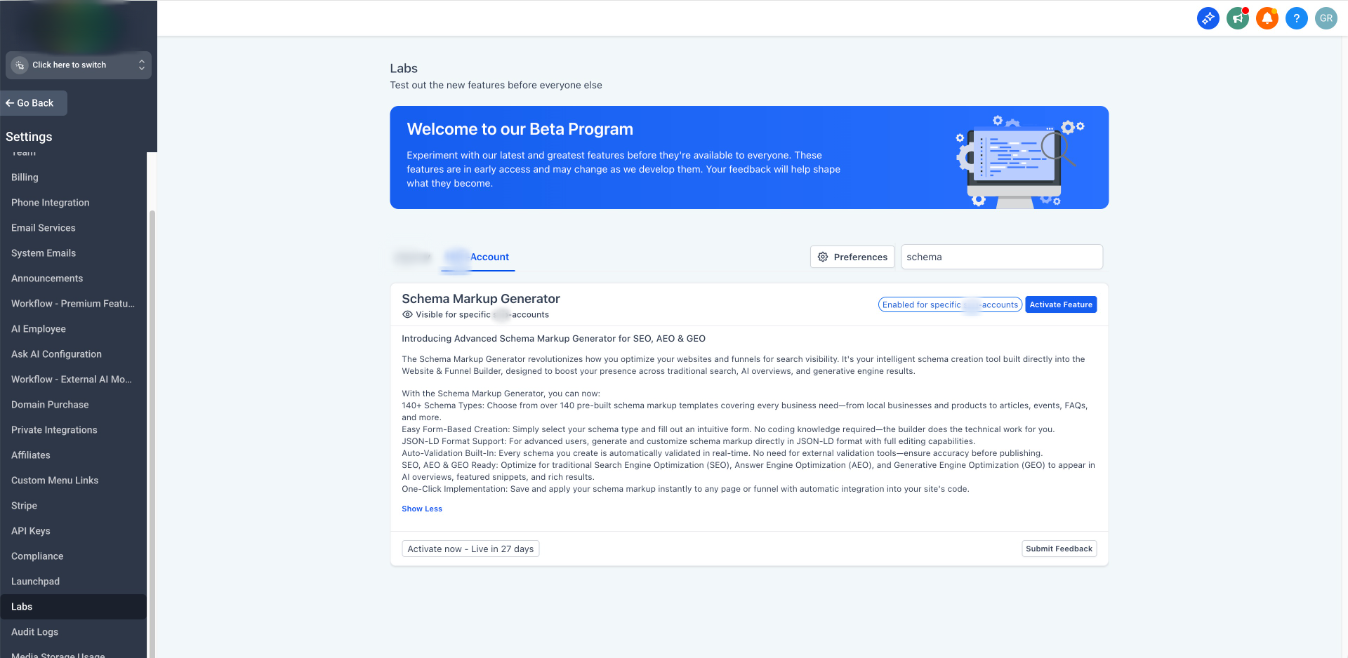
- Enable: Account Settings → Labs → Search "Schema Markup Generator" → Activate Feature (for specific or all accounts)
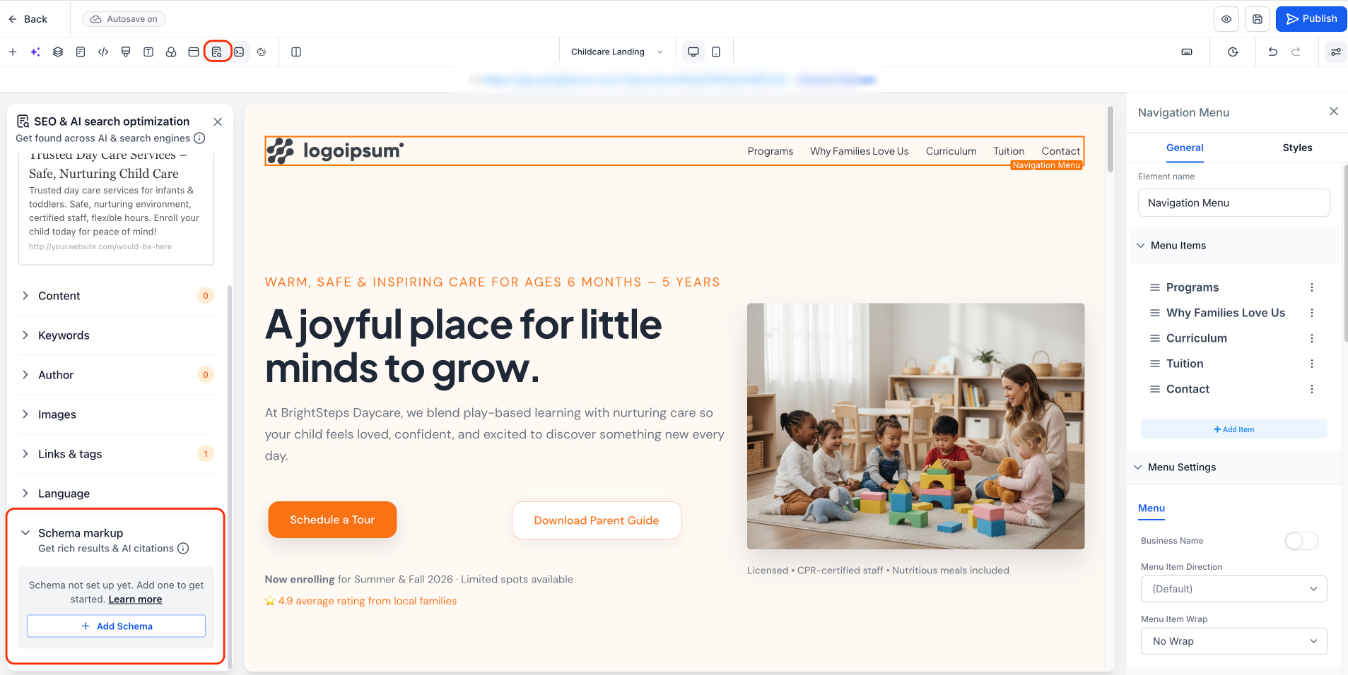
- Access: Website/Funnel Builder → Edit Page → SEO & AI search optimization (left panel) → Schema Markup → + Add Schema
Steps
:- Select a schema type from the dropdown (e.g., LocalBusiness, FAQPage, Product)
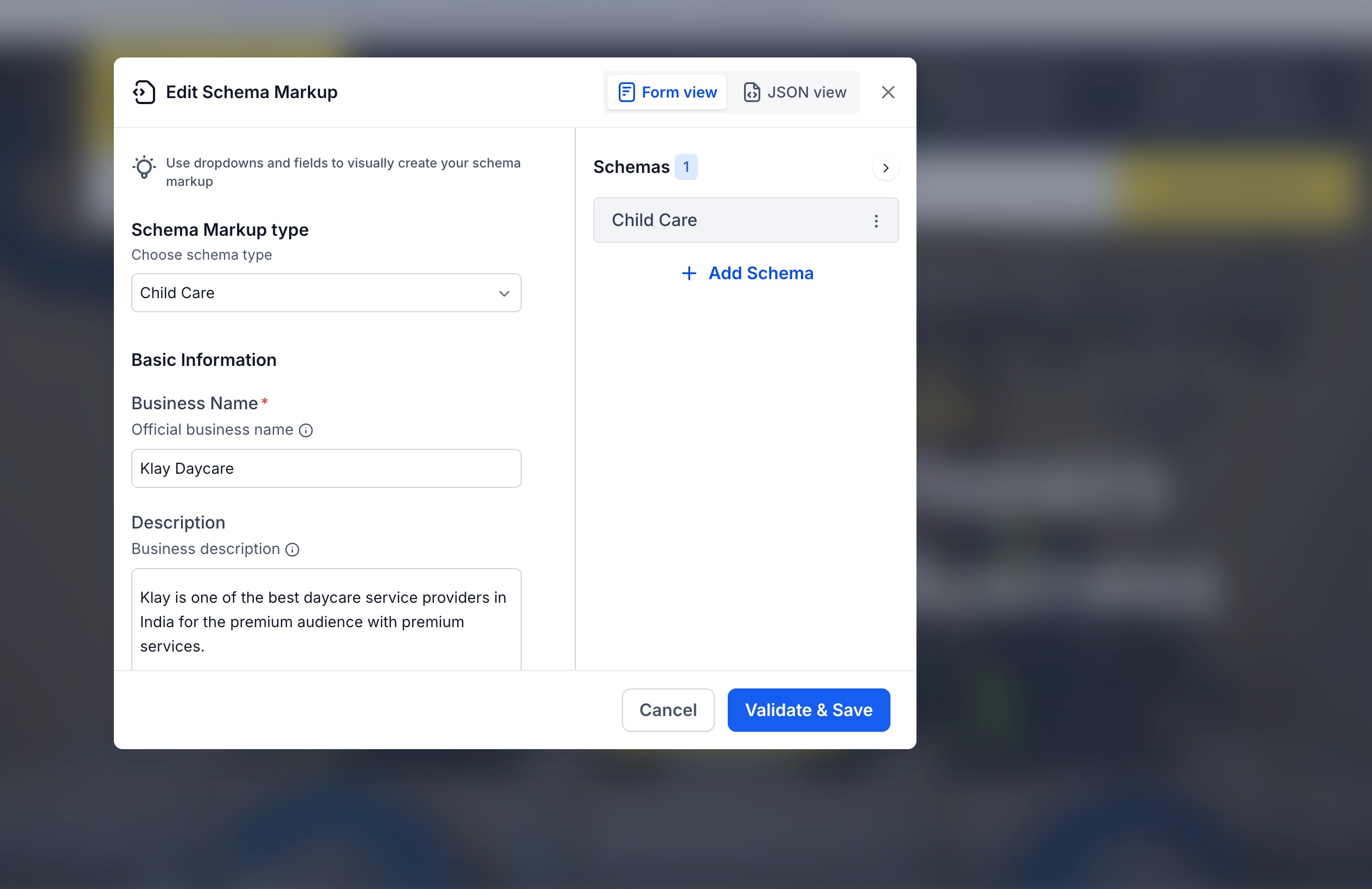
- Fill in the fields in Form View, or switch to JSON View for direct code editing
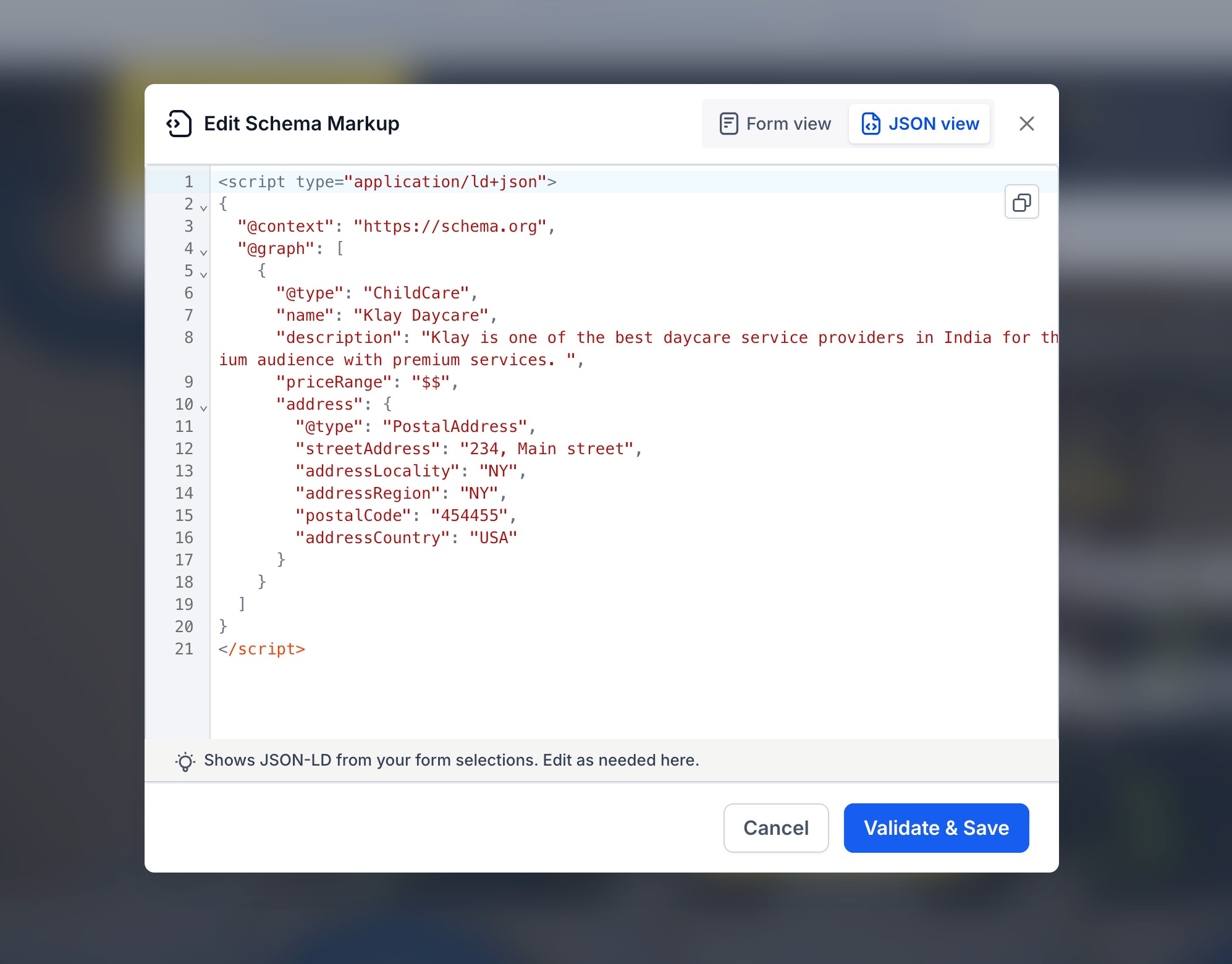
- Click Validate & Save – errors are highlighted inline if validation fails
- Publish the page to make the schema live
Supported Schema Types
Organization, Website, BreadcrumbList, Article/BlogPosting, FAQPage, QAPage, HowTo, VideoObject, Person, Product, LocalBusiness, Event — including all child types under each.
Good to Know
- Schema is page-specific – it does not carry over to other pages or funnel steps
- Schema appears in preview immediately after saving, but goes live only on publish
- Schema is not auto-generated when creating a new page with AI – add it manually after content is ready
Was this article helpful?
That’s Great!
Thank you for your feedback
Sorry! We couldn't be helpful
Thank you for your feedback
Feedback sent
We appreciate your effort and will try to fix the article