Overview
We’ve redesigned the
Calendar Settings experience
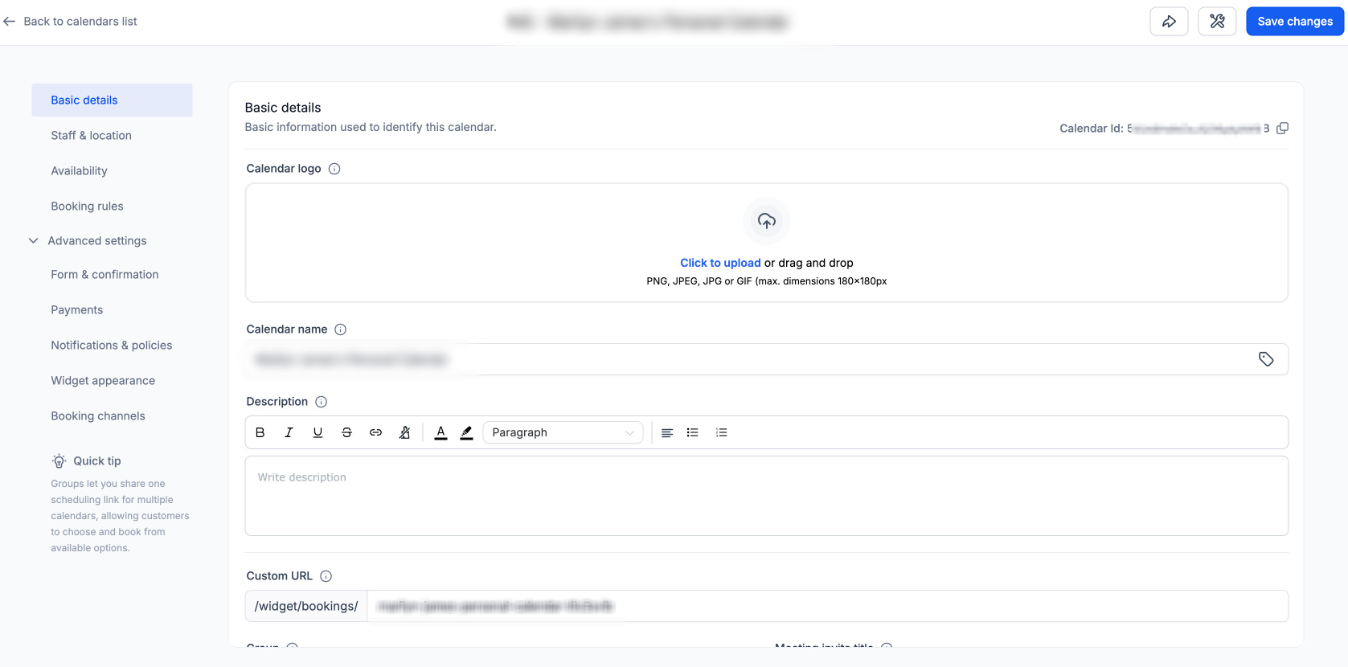
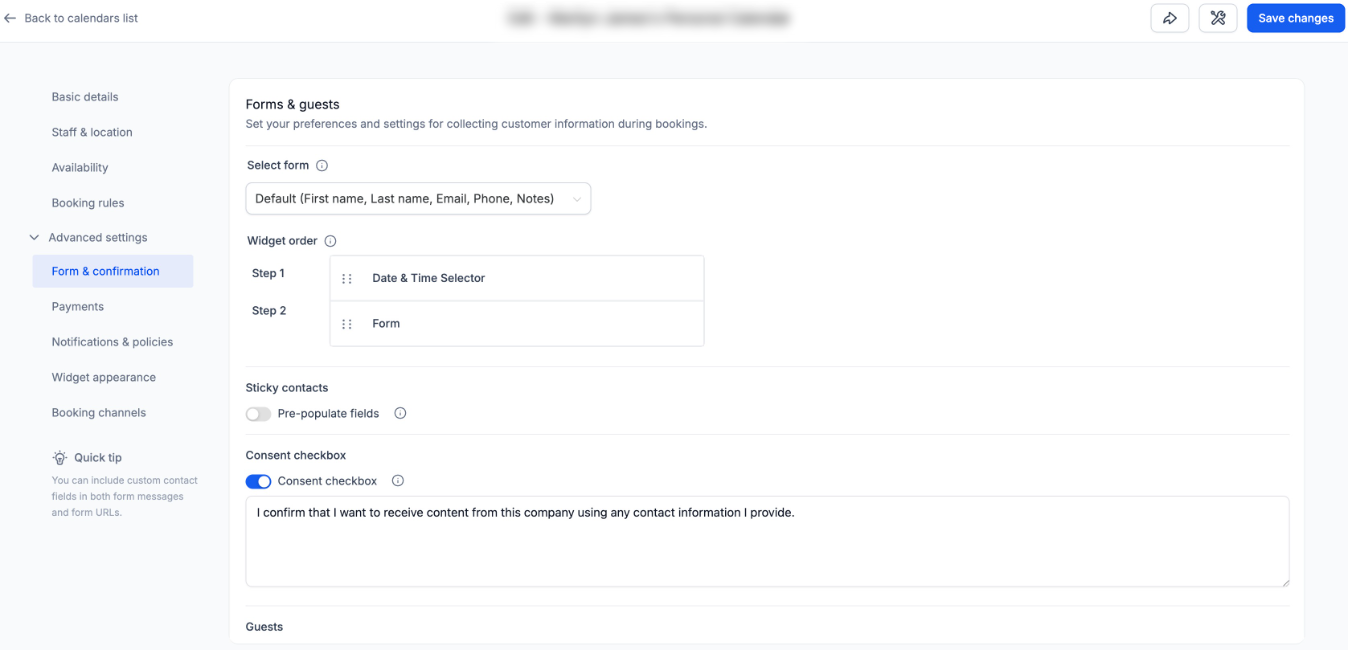
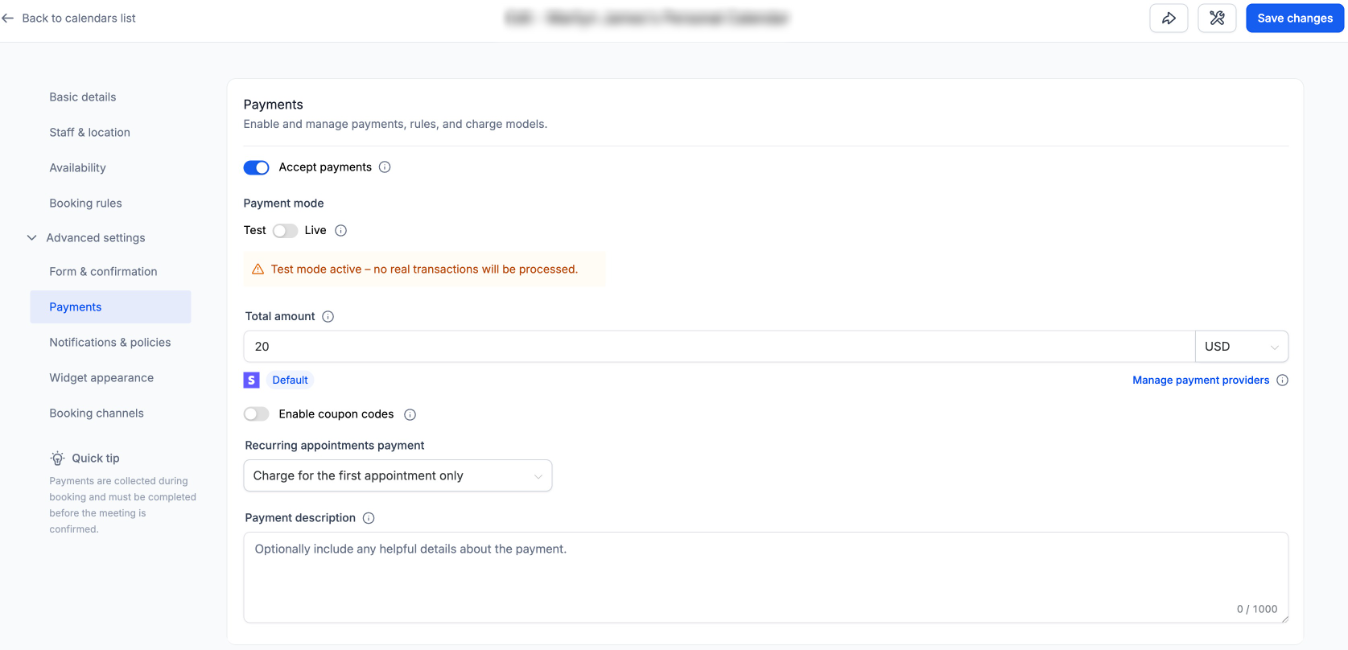
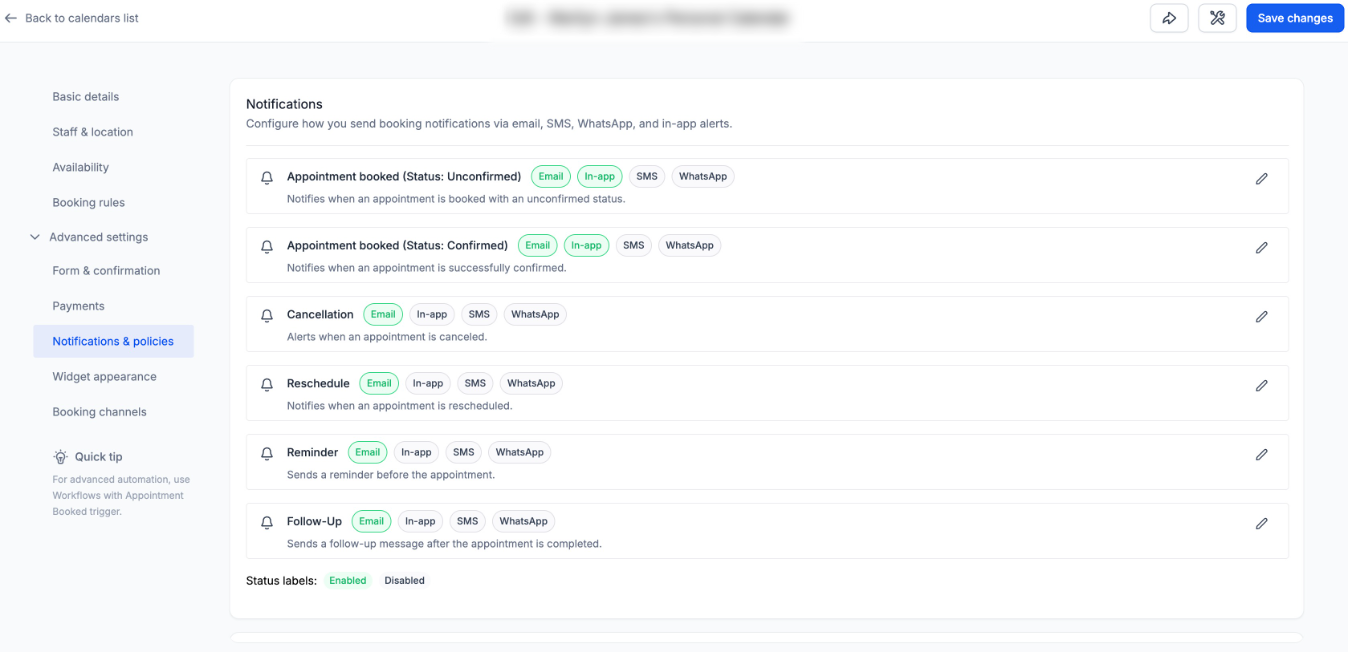
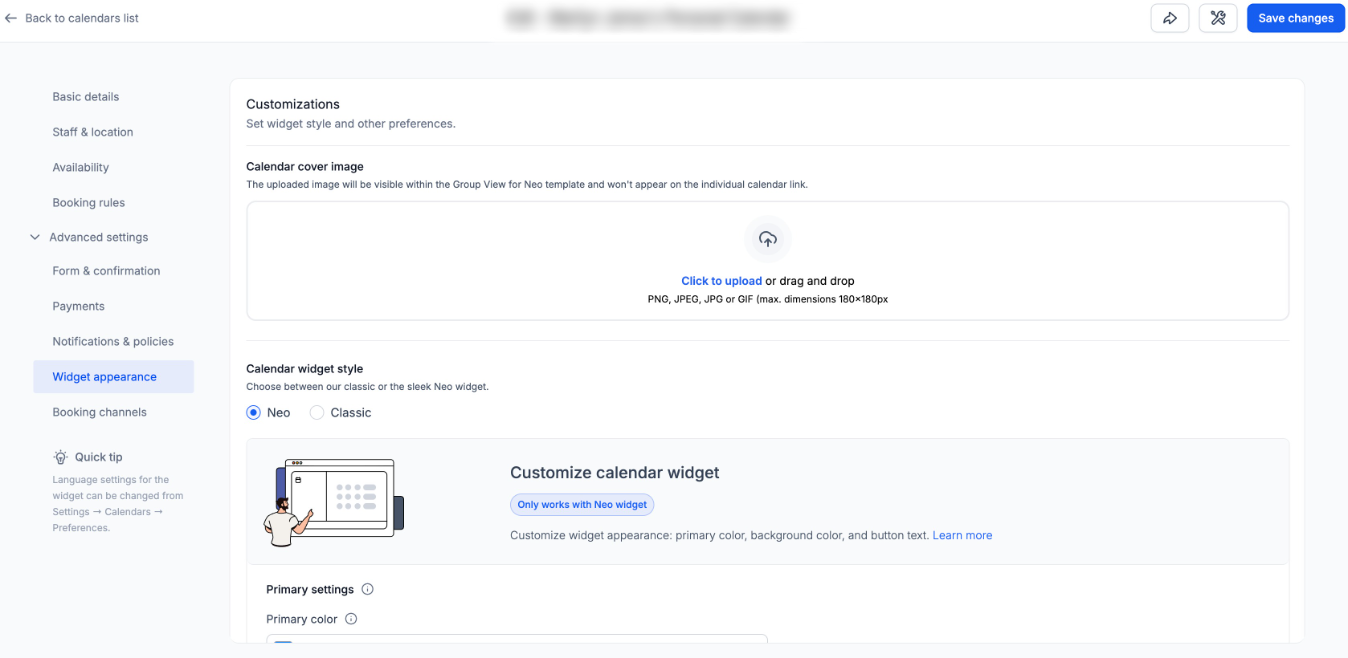
to make configuration clearer, more structured, and easier to navigate.This update introduces a cleaner information architecture with logically grouped sections, contextual helper text, and a wider layout for improved readability.
The goal: help you configure calendars faster — with less scrolling and less confusion.
What’s New
Clear & Structured Settings Layout
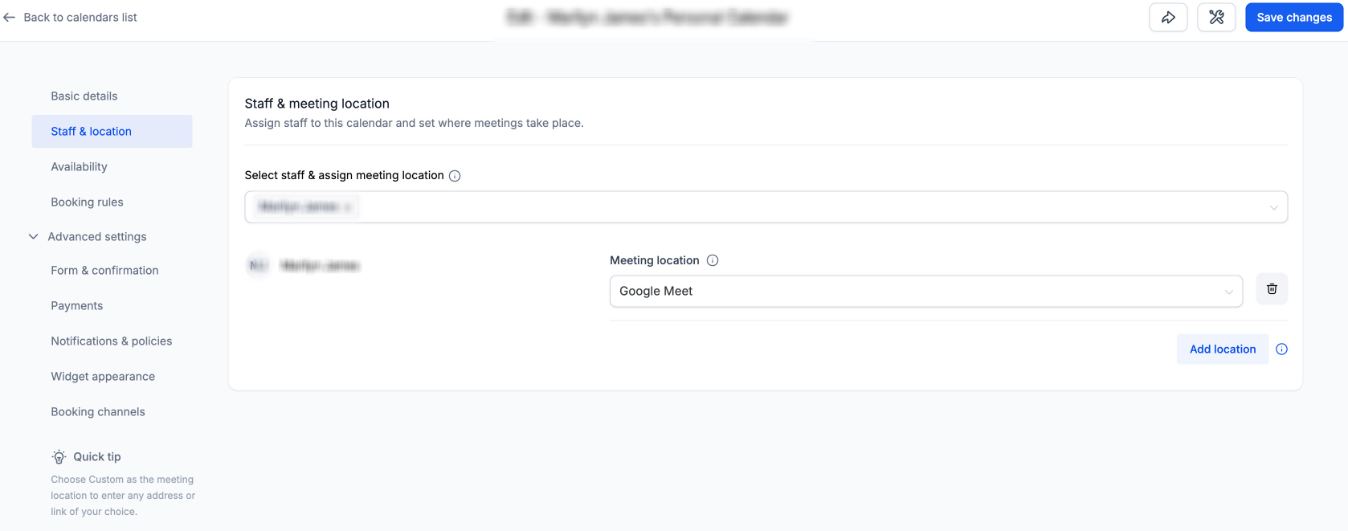
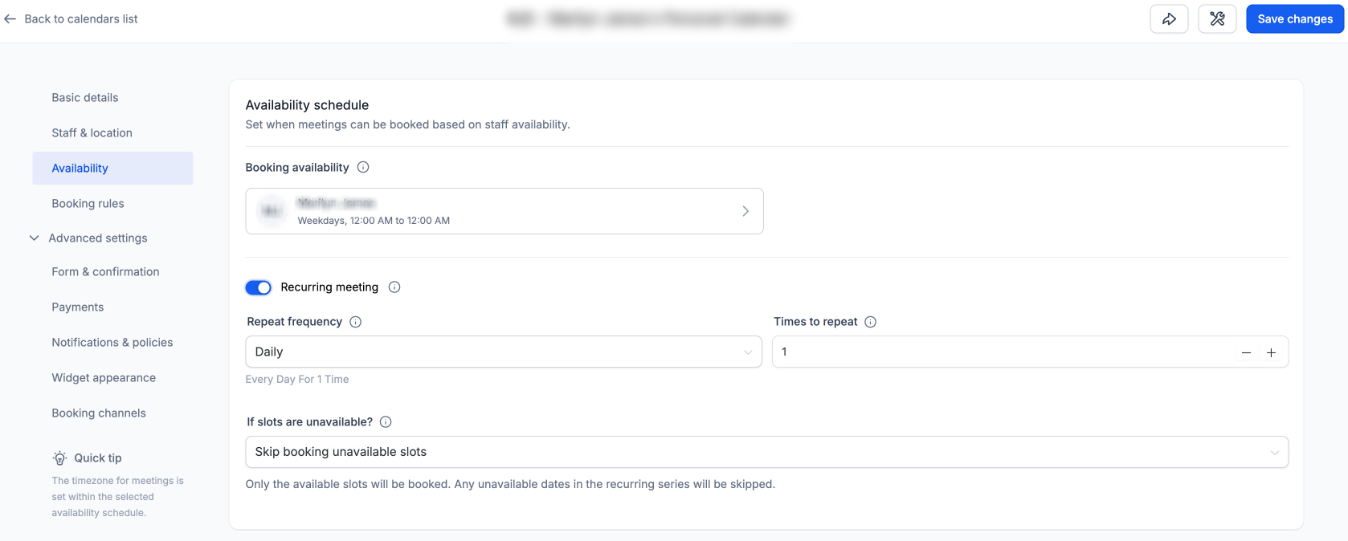
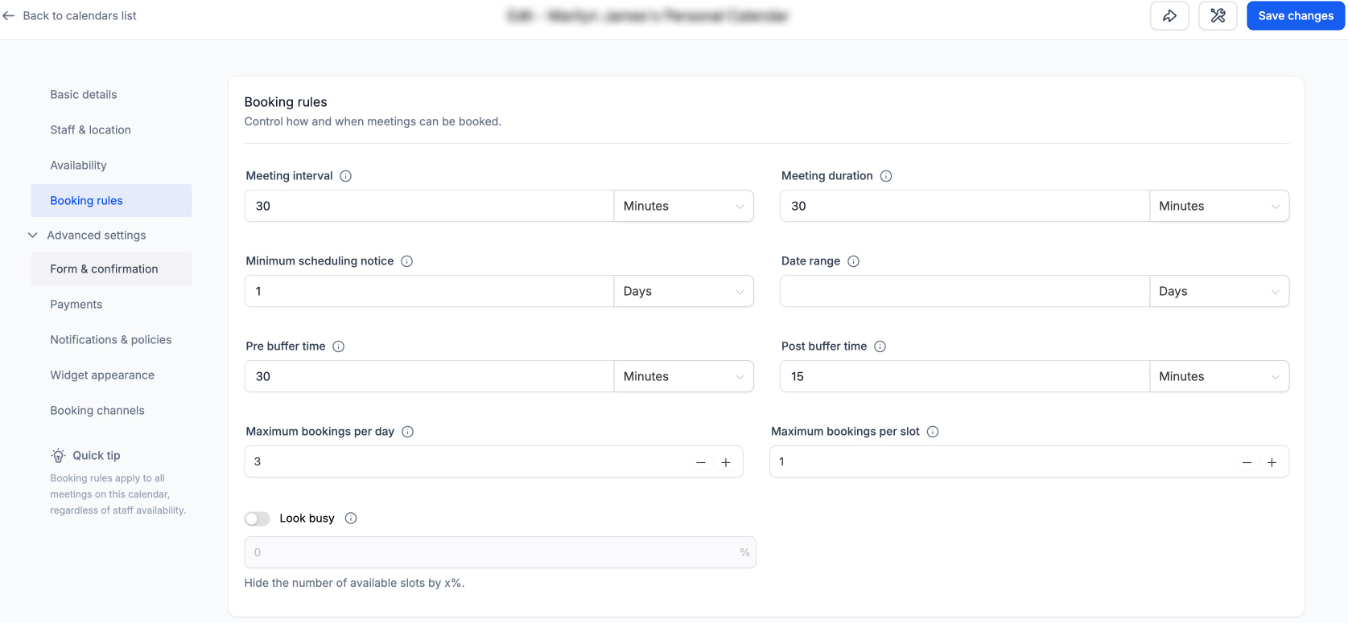
Calendar settings are now organized into clearly defined sections:
- Basic details
- Staff & location
- Availability
- Booking rules
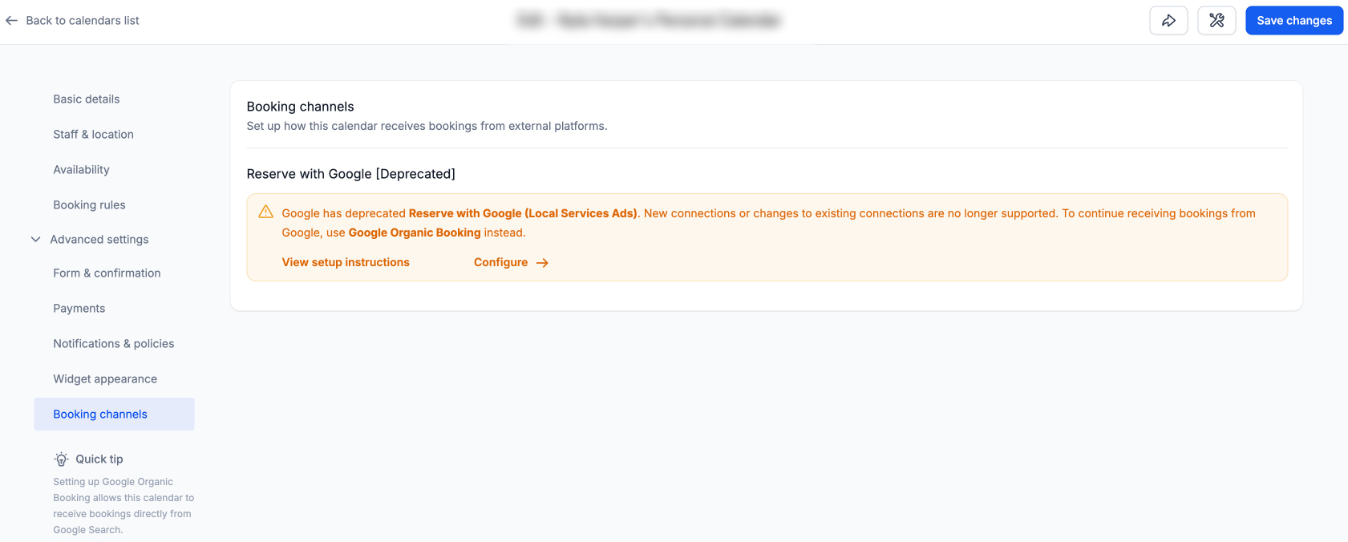
- Advanced settings
Within Advanced Settings, you’ll find:
- Form & confirmation
- Payments
- Notifications & policies
- Widget appearance
- External sync (Event Calendars)
- Booking channels (Other Calendar Types)
Each section now contains only related settings, making navigation more intuitive.
Contextual Helper Text
Each section includes concise helper texts explaining each associated setting's purpose, improving discoverability and reducing configuration confusion — especially for new users.
Wider Layout for Better Readability
The Calendar Settings panel now spans a larger portion of the screen.
This improvement:
- Reduces unnecessary vertical stacking
- Improves spacing between fields
The layout remains fully responsive across standard screen sizes.
How to Access
Navigate to:
Calendars → Calendar Settings → Meetings → Edit Calendar
You’ll now see the updated structure and improved layout.
Why This Matters
- More intuitiveandfaster calendar setup
- Better readability with improved use of screen space
- A stronger, scalable foundation for future calendar enhancements
- Minimizes excessive scrollingand shows more settings upfront,improving the discoverability
Was this article helpful?
That’s Great!
Thank you for your feedback
Sorry! We couldn't be helpful
Thank you for your feedback
Feedback sent
We appreciate your effort and will try to fix the article